Azure Bastion RDP Connector
Securely connect to Azure VMs and IP addresses through Azure Bastion using the native Windows RDP client — via a simple, user-friendly interface.
🗺️ Overview
Azure Bastion RDP Connector is a Windows desktop application that makes it easy to establish secure RDP connections to virtual machines and IP addresses hosted in Microsoft Azure, routed through Azure Bastion — without exposing public IP addresses or opening RDP ports to the internet.
Under the hood it uses your Azure account credentials and the Azure Bastion service. You never need to manage certificates, VPNs, or open firewall rules. The application handles all the complexity and hands control directly to your standard Windows Remote Desktop client.
Key capabilities
| Feature | Details |
|---|---|
| Connect by IP | Tunnel to any IP address reachable through Bastion |
| Connect by VM | Browse and pick any Azure VM in your subscriptions |
| Tunnel mode | Native .NET WebSocket tunnel — no Azure CLI required |
| RD Gateway mode | Modern direct RD Gateway connection via Bastion API |
| VM power management | View power state and start stopped VMs from the app |
| Multi-tenant | Switch between Entra ID tenants; settings saved per tenant |
| Multi-monitor | Single monitor or span-all-monitors for RD Gateway sessions |
| Entra ID auth | Optional Entra ID SSO for same-tenant RD Gateway connections |
| System tray | Minimise to tray, receive notifications, manage tunnels |
| 6 languages | English, Dutch, German, French, Spanish, Portuguese |
| Single instance | Only one copy of the application can run at a time; launching a second copy brings the existing window to the front |
| Light & dark theme | Automatically follows the Windows light/dark theme setting |
✅ Prerequisites
Before you can use the application, ensure the following are available in your environment.
On your machine
| Requirement | Notes |
|---|---|
| .NET 10 | Included — the application is self-contained, no separate .NET installation required |
| Windows 10/11 (x64) | The application is a native Windows x64 executable |
| Remote Desktop client | Built into Windows — mstsc.exe |
| Azure CLI v2.x only | No longer required as of v3.0. Only needed if you are running version 2.x. Download from aka.ms/installazurecliwindowsx64 |
Azure CLI is no longer required as of v3.0. Tunnel connections are now established natively in .NET without any CLI dependency. If you are still running v2.x, Azure CLI and the azure-bastion extension are still needed — see the Settings & Persistence section for file locations.
In Azure
| Resource | Notes |
|---|---|
| Azure Bastion (Standard or Premium SKU) | Basic SKU does not support tunnelling or RD Gateway |
| An Azure subscription | The application lists all subscriptions you have access to |
| Reader role on Bastion + target VM/network | Minimum RBAC required to list and connect; Virtual Machine Contributor or higher is needed to start stopped VMs |
Network reachability — Azure Bastion can reach a target VM or IP address as long as network connectivity exists between them. This includes:
- Simple setups: Bastion deployed in the same VNet, or a directly peered VNet.
- Enterprise / Landing Zone setups: Bastion deployed in a centralised Connectivity Landing Zone connected via Azure Virtual WAN (vWAN) hub. In this topology, Bastion is not visible inside individual spoke landing zones in the Azure Portal — even though it can reach all spoke VNets through the vWAN. This application is specifically designed to solve this problem, giving users a simple interface to connect through a centrally managed Bastion regardless of which landing zone their VM lives in.
If you are unsure whether your Bastion can reach a specific target, contact your Azure platform or network team.
📦 Installation
Azure Bastion RDP Connector is available on the Microsoft Store. Installation is handled entirely by Windows — no manual setup, no extracted ZIP files, and no SmartScreen warnings.

How to install
Click Open in Store app above, or visit apps.microsoft.com/detail/9N9MJ1V43Z6T in your browser.
Windows downloads and installs the application automatically. No administrator rights are required for a per-user install.
Search for Bastion RDP Connector or find it under your installed apps.
Because the app is installed via the Microsoft Store, it updates automatically in the background. You will always have the latest version without any manual action.
Settings are saved to %APPDATA%\BastionRDPConnector\settings.json. Your last-used subscription, Bastion, VM, and connection preferences are automatically restored on the next launch.
🔐 First Login
Each time the application starts, it checks whether a valid MSAL token cache exists on your machine. What happens next depends on that check:
| Situation | What the app does |
|---|---|
| No cached token found | The Microsoft Azure login window opens immediately so you can sign in. |
| Valid cached token found | The app signs in silently — no login window appears. You go straight to tenant selection (if multi-tenant). |
| Token expired / CA policy requires re-auth | The login window opens again to satisfy your organisation's Conditional Access requirements (e.g. daily MFA). |
The application stores authentication tokens in a private cache file at %LOCALAPPDATA%\BastionRDPConnector\msal_token_cache.bin. This is a per-machine, non-roaming file — it is not shared with Azure CLI. v3.0+
In v2.x this file was stored at %USERPROFILE%\.azure\msal_token_cache.bin and shared with the Azure CLI.
To reset the token cache (force a fresh login on next start), use the Logout button — it automatically deletes the cache file and clears the MSAL state in one step. To delete it manually, remove %LOCALAPPDATA%\BastionRDPConnector\msal_token_cache.bin.
Signing in (no cached token)
When no token is cached, the Microsoft Azure login window opens automatically:
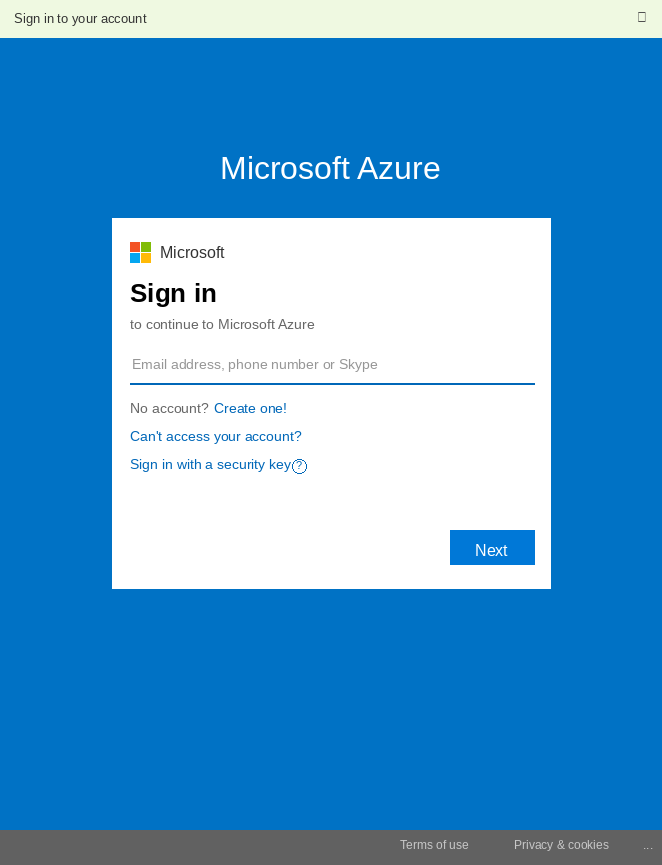
In the sign-in options, choose your organisational Microsoft account — not a personal Microsoft account.
Type your work e-mail address (User Principal Name), or select it from the list if it was previously cached by Windows.
Follow the on-screen prompts for any multi-factor authentication your organisation enforces.
Tenant selection
After a successful login — or when the app restarts and re-uses a cached token — a tenant selection dialog appears if your account has access to more than one Entra ID tenant (for example via Azure Lighthouse).
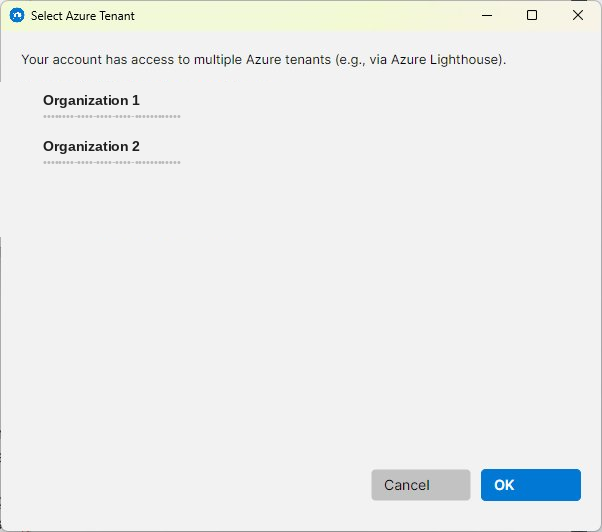
Select the tenant whose resources you want to work with, then click OK. If the selected tenant requires MFA and your cached token does not satisfy it, an additional authentication prompt will appear.
You can switch tenants at any time while the app is running — your settings (last subscription, Bastion, VM, etc.) are stored separately per tenant and restored automatically when you switch back.
Selecting a subscription
After tenant selection the main window loads. The top bar shows the currently active Bastion Subscription. If your account has access to multiple subscriptions and the pre-selected one does not contain the Azure Bastion you need, click Change to open the subscription picker.
The Bastion Subscription (top bar) is the subscription that contains your Bastion resource. The VM Subscription (Azure VM tab) can be a different subscription — cross-subscription connections are fully supported.
Your access token is securely cached on disk (MSAL token cache). On subsequent launches the application re-authenticates silently — you will not be prompted to log in again unless your session expires or your organisation's Conditional Access policy requires re-authentication.
To log out and clear the cached token, click the red Logout button in the top bar. A confirmation dialog will appear before the application closes and removes all cached credentials. The next launch will require a full sign-in.
🖼️ Window Layout
The main window is divided into three persistent areas and three tabs.
| Area | Purpose |
|---|---|
| Subscription bar (top) | Shows the active Bastion subscription and logged-in account. Provides Change and Logout buttons. |
| Bastion selector | Dropdown to pick the Azure Bastion instance to use for connections. Click Refresh to reload the list. |
| IP Address tab | Connect to any IP address through Bastion using a local tunnel. |
| Azure VM tab | Browse VMs across subscriptions, check power state, start VMs, and connect. |
| Active Tunnels tab | View and manage all tunnels currently open by this application. |
🌐 IP Address Tab
Use this tab when you want to connect to a specific IP address through Azure Bastion, rather than selecting a VM from Azure. This is useful for non-Azure resources, on-premises machines, or resources without a VM record in your subscription.
The IP Address tab always uses Tunnel mode. RD Gateway is not available for direct IP connections.
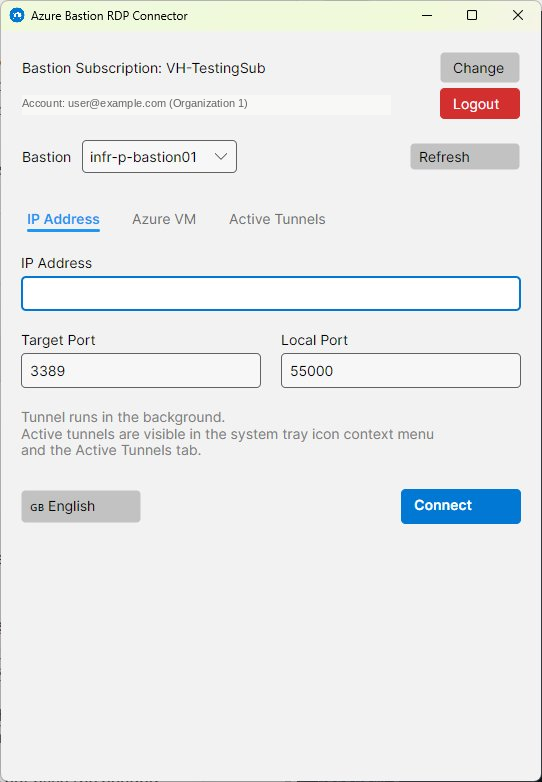
Fields
| Field | Description | Default |
|---|---|---|
| IP Address | The private IP address of the target machine. Must be reachable from Bastion's VNet. | — |
| Target Port | The RDP port on the remote machine. | 3389 |
| Local Port | The port on your local machine where the tunnel is created. Your RDP client connects to localhost:[Local Port]. | 55000 |
How to connect
Type the private IP of the machine you want to reach.
Leave Target Port as 3389 unless the machine uses a non-standard RDP port. Change Local Port only if 55000 is already in use on your machine.
The application opens a native WebSocket tunnel to Bastion and launches the Windows RDP client pointing to localhost:[Local Port].
🖥️ Azure VM Tab
Use this tab to browse your Azure Virtual Machines and connect to them directly. The application can automatically start stopped VMs and supports both connection methods.
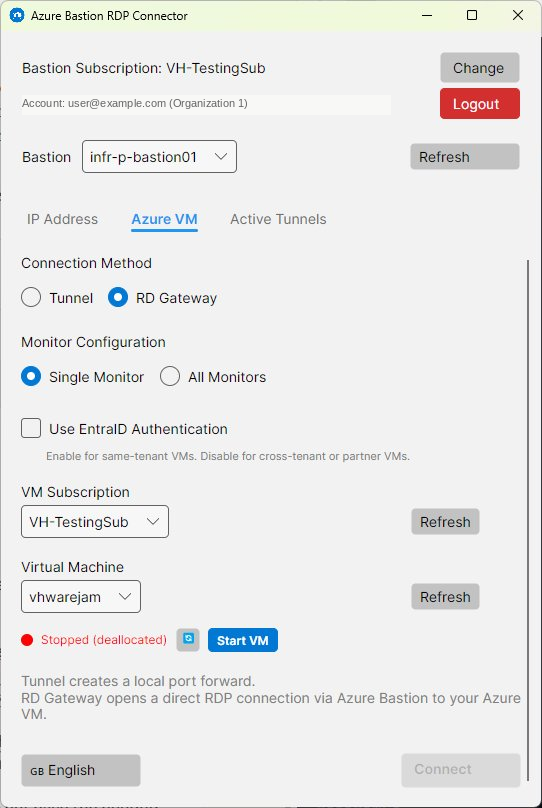
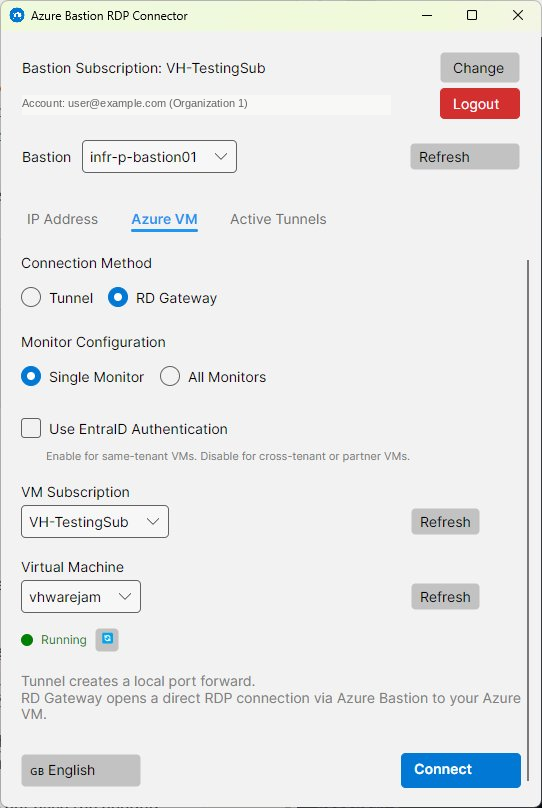
Fields
| Field | Description |
|---|---|
| Connection Method | Choose Tunnel or RD Gateway. See the comparison section for guidance. |
| Monitor Configuration | Select Single Monitor (primary screen only) or All Monitors (span across all displays). Only applies to RD Gateway mode. |
| Entra ID Authentication | Optional checkbox (visible in RD Gateway mode only). Enables Entra ID SSO. See Entra ID Auth. |
| VM Subscription | The subscription containing the target VM. Can differ from the Bastion subscription (cross-subscription access is supported). |
| Virtual Machine | The specific VM to connect to. The list is populated after selecting a subscription. |
| Power State | Shows the current VM status with a colour-coded dot: 🟢 Running · 🔴 Stopped/Deallocated · 🟠 Starting/Stopping/Other |
| Target Port | RDP port on the VM (Tunnel mode only). |
| Local Port | Local tunnel port (Tunnel mode only). |
Port values are synchronised between the IP Address tab and the Azure VM tab. Changing the port on one tab automatically updates the other.
🔗 Active Tunnels Tab
This tab shows all RDP tunnels currently open by the application. Each tunnel entry displays the connection target, local port, and the time the tunnel was started.
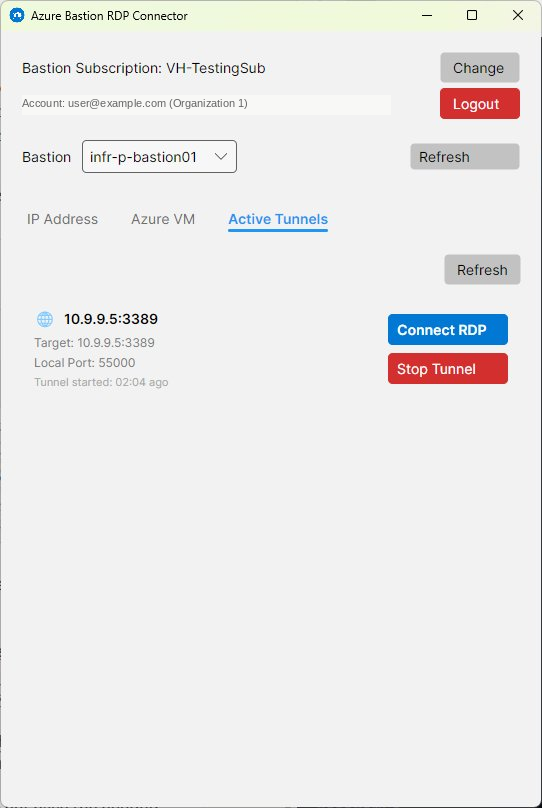
| Control | Action |
|---|---|
| Refresh | Reloads the list of active tunnels. |
| Connect RDP | Re-launches the Windows RDP client connected to this tunnel's local port. Useful if you accidentally closed the RDP window. |
| Stop | Terminates the tunnel and closes the WebSocket connection to Bastion. |
Stopping a tunnel will immediately disconnect any active RDP session using that tunnel. Save your work in the remote session before clicking Stop.
🚇 Tunnel Mode
Tunnel mode creates a local port forward connection. Traffic from a port on your machine (Local Port) is routed through Azure Bastion to the target (Target Port) on the remote machine. As of v3.0 this functionality is now implemented natively — no Azure CLI installation required. Users of v2.x still need Azure CLI installed for this to work.
How it works
The app uses your existing MSAL token to obtain an ARM access token. No Azure CLI or external tools are needed.
The main window minimises automatically so it stays out of the way. The app opens a native WebSocket connection to Bastion and begins the TCP proxy — no background CLI process is involved.
The Windows RDP client is launched pointing to localhost:[Local Port]. Traffic is forwarded transparently through Bastion.
The tunnel process runs in the background. You can see it in the Active Tunnels tab and in the tray icon context menu. It persists until you stop it or exit the application.
Tunnel mode is the only method available on the IP Address tab. It supports multiple simultaneous tunnels to different targets.
🏛️ RD Gateway Mode
RD Gateway mode uses the same API as the Connect button in the Azure Portal. The application calls the Azure Bastion RD Gateway endpoint and downloads a pre-configured .rdp file. The Windows RDP client then connects directly to Azure Bastion acting as an RD Gateway — no local port forwarding is needed.
How it works
The main window minimises automatically. The app calls the Bastion API to generate a signed, temporary RDP file and saves it securely to a private temp folder on disk with restricted permissions.
mstsc.exe launches with the downloaded RDP file. It connects directly to Bastion's RD Gateway endpoint — no local port forwarding needed.
The RDP file is kept only for the duration of the application session and is securely deleted when the application closes.
Entra ID auth fallback — If Use Entra ID Authentication is enabled but the Bastion API rejects it (for example in a cross-tenant scenario), the application automatically retries using traditional RDP authentication so the connection can still succeed.
Technical implementation reference available. For full protocol details, undocumented API findings, and .NET implementation notes for the native Bastion tunnel, see the Azure Bastion Native Tunnel — Technical Reference →
⚖️ Method Comparison
| 🚇 Tunnel | 🏛️ RD Gateway | |
|---|---|---|
| Requires Azure CLI | ❌ No v3.0+ ✅ Yes v2.x | ❌ No |
| Works with IP Address tab | ✅ Yes | ❌ No |
| Works with Azure VM tab | ✅ Yes | ✅ Yes |
| Multiple simultaneous sessions | ✅ Yes | ✅ Yes |
| Monitor span support | Limited | ✅ Full (Single / All) |
| Entra ID SSO option | ❌ No | ✅ Yes (same-tenant) |
| Local port required | ✅ Yes | ❌ No |
| Appears in Active Tunnels tab | ✅ Yes | ❌ No |
| Network traffic path | localhost → Bastion → VM | RDP client → Bastion → VM |
In general, use RD Gateway for day-to-day Azure VM access. Use Tunnel when you need to connect to a specific IP address that is not an Azure VM — for example:
- An on-premises server or workstation reachable from Azure Bastion via a site-to-site VPN or Azure ExpressRoute circuit.
- A host in another cloud provider (e.g. AWS, GCP) connected to Azure via VPN.
- Any other privately routable IP address that Bastion can reach but that has no Azure VM record in your subscription.
In these cases RD Gateway is not available — Tunnel mode with a direct IP address is the only option.
🖥️ Monitor Configuration
Available in the Azure VM tab when RD Gateway connection method is selected.
| Option | Behaviour |
|---|---|
| Single Monitor | The RDP session opens full-screen on your primary monitor only. Suitable for single-monitor setups or when you want to keep other screens available. |
| All Monitors | The RDP session spans across all connected monitors. The remote desktop stretches to fill your entire multi-monitor setup. |
Monitor configuration is written into the downloaded RDP file. It is remembered between sessions per tenant.
🔑 Entra ID Authentication
Available as an optional checkbox in the Azure VM tab when RD Gateway mode is selected.
| State | Behaviour |
|---|---|
| OFF (default) | Traditional RDP authentication. You enter Windows username and password in the RDP login screen. Works across tenants and in all scenarios. |
| ON | Entra ID single sign-on (SSO). The RDP session authenticates using your Microsoft identity. Only works when your account and the target VM are in the same Entra ID tenant. |
Do not enable Entra ID Authentication if you are connecting cross-tenant (e.g., via Azure Lighthouse to a customer subscription). Use the default OFF setting in those cases.
Automatic fallback — If Entra ID Authentication is enabled but the Bastion API rejects it (for example in a cross-tenant scenario), the application automatically retries using traditional RDP authentication so the connection can still succeed.
⚡ VM Power Management
When a VM is selected in the Azure VM tab, the application displays its current power state and allows you to start it if it is stopped.
Power state indicators
Starting a stopped VM
The red power-state indicator and Start VM button appear.
The button is replaced by a progress indicator (⏳ Starting VM…). The application polls Azure for the updated power state.
When the indicator turns green, the VM is ready. You can then click Connect.
The Running state means Azure has powered on the VM — but the guest operating system still needs a minute or two to fully boot and start accepting RDP connections. If your connection attempt is refused immediately after the VM reaches Running state, wait 2–3 minutes and try again.
Starting a VM requires at least Virtual Machine Contributor role on that VM. If the Start VM button does not appear, your account may lack the required permission.
Once a VM start is initiated, the application polls Azure every 5 seconds for up to 5 minutes waiting for the Running state. If the VM does not reach Running within that time, click the 🔄 Refresh button to check the current state manually.
When the VM reaches Running state, the application shows a Windows toast notification from the system tray icon confirming the VM is ready.
The Connect button on the Azure VM tab is disabled whenever the VM is not in Running state. Even if you click Connect immediately after the status indicator turns green, the application re-validates the power state at that moment before proceeding.
🏢 Multi-Tenant Support
If your Azure account has access to multiple Entra ID tenants (for example, via Azure Lighthouse for managed service provider scenarios), the application supports switching between tenants.
How tenant selection works
After logging in, if multiple tenants are detected, you will be presented with a tenant selection dialog. The selected tenant is displayed next to your account name in the top bar.
Per-tenant settings
The following settings are stored separately for each tenant, so switching tenants restores your previous context for that tenant:
Language preference is global — it applies across all tenants and is not reset when switching.
📌 System Tray
The application adds an icon to the Windows system tray (notification area). This lets you keep it running in the background while keeping your taskbar tidy.
| Action | Result |
|---|---|
| Double-click tray icon | Restores the main window to the foreground. |
| Right-click tray icon | Opens a context menu listing all active tunnels (each as a submenu), a Show Main Window item, and an Exit item. |
| Tunnel submenu | Each active tunnel appears as a submenu showing the target and local port. From there you can Connect RDP (re-launch the RDP client) or Stop Tunnel without opening the main window. |
| Balloon notifications | The tray icon shows toast-style notifications for tunnel started, tunnel connected, tunnel stopped, VM started, and connection errors. |
Closing the main window or minimising it hides the window and removes it from the taskbar — the application continues running in the tray. To fully exit, right-click the tray icon and choose Exit.
🌐 Languages
The application supports six interface languages. The language is automatically detected from your Windows regional settings on first launch. You can change it at any time using the 🌐 Language button on either connection tab.
 English
 Nederlands
 Deutsch
 Français
 Español
 Português
Language changes take effect immediately without restarting the application. All UI text — labels, buttons, messages, and tooltips — updates live. The selected language is saved globally and persists across launches.
Automatic detection order
If no language has been saved yet, the application tries to detect your preference in this order:
- Windows UI language (
CultureInfo.CurrentUICulture) - Windows installed UI language
- Windows regional format
- Windows Registry language settings
- Falls back to English
💾 Settings & Persistence
The application automatically saves and restores your preferences between sessions. You never need to edit any file manually — everything is managed by the application.
File locations
The application reads and writes the following files on your machine:
| File | Path | Purpose |
|---|---|---|
| Settings | %APPDATA%\BastionRDPConnector\settings.json | User preferences: last-used subscription, Bastion, VM, ports, connection method, language, etc. See below for the full list. |
| MSAL token cache | %LOCALAPPDATA%\BastionRDPConnector\msal_token_cache.bin | Encrypted Azure login tokens. Private to this application — not shared with Azure CLI. v3.0+ |
| MSAL token cache v2.x | %USERPROFILE%\.azure\msal_token_cache.bin | Pre-v3.0 location — shared with Azure CLI. Still present if you previously ran v2.x. |
| Azure profile v2.x | %USERPROFILE%\.azure\azureProfile.json | Pre-v3.0: subscription list and signed-in user info. Shared with Azure CLI. |
| Cloud config v2.x | %USERPROFILE%\.azure\clouds.config | Pre-v3.0: Azure cloud endpoint configuration. Shared with Azure CLI. |
| HTTP cache v2.x | %USERPROFILE%\.azure\msal_http_cache.bin | Pre-v3.0: HTTP response cache. Shared with Azure CLI. |
| Debug log | %LOCALAPPDATA%\BastionRDPConnector\debug.log | Diagnostic log for troubleshooting. Cleared on every application start. |
| RDP temp files | %TEMP%\BastionRDPConnector\ | Temporary RDP files created by RD Gateway connections. Deleted when the application closes. |
Contents of settings.json
The following preferences are stored in settings.json and automatically restored on the next launch:
| Setting | Scope | Notes |
|---|---|---|
| Language | Global | Applies across all tenants |
| Last Subscription (Bastion) | Per-tenant | Restored when tenant is switched back |
| Last Bastion | Per-tenant | |
| Last VM Subscription | Per-tenant | |
| Last VM | Per-tenant | |
| Last IP Address | Per-tenant | |
| Target Port / Local Port | Per-tenant | Synchronised between both tabs |
| Connection Method | Per-tenant | Tunnel or RD Gateway |
| Monitor Mode | Per-tenant | Single or All Monitors |
| Entra ID Auth | Per-tenant | On/off for RD Gateway SSO |
🔧 Troubleshooting
Launching the application does nothing / window does not appear
The application enforces a single instance policy. If it is already running in the system tray, launching it again will not open a second window — instead the existing window is brought to the foreground. Check the system tray for the application icon.
No subscriptions appear / Bastion list is empty
This usually means your account does not have the required RBAC permissions on any subscription, or the selected tenant does not contain any Bastion resources. Try:
- Clicking Refresh next to the Bastion selector.
- Using Change to select a different subscription.
- Logging out and back in if your Azure session may have expired.
- Contacting your Azure administrator to verify your role assignments.
RDP client opens but connection fails — Azure VM (RD Gateway)
Verify that:
- The target VM's power state is Running and the OS has had 2–3 minutes to fully boot.
- The Bastion SKU is Standard or Premium (Basic does not support native client connections).
- No Network Security Group (NSG) rule is blocking inbound traffic from Bastion to the VM on port 3389.
- Network connectivity exists between your Bastion and the VM — either directly, via VNet peering, or via Virtual WAN.
RDP client opens but connection fails — Azure VM (Tunnel mode)
In addition to the checks above, verify that:
- The tunnel process is still running — check the Active Tunnels tab. If the tunnel has stopped unexpectedly, try connecting again to restart it.
If the configured local port is already in use, the application automatically selects the next available port and updates the display — no manual intervention needed.
RDP client opens but connection fails — IP address (Tunnel mode)
In addition to the general tunnel checks above, verify that:
- The target IP address is reachable from Azure Bastion — not just from your local machine. For on-premises hosts this requires a working site-to-site VPN or ExpressRoute circuit. For hosts in another cloud, a VPN connection to Azure must be in place.
- The correct Target Port is set. While 3389 is standard for RDP, on-premises or non-Azure hosts may use a different port.
- A firewall or host-based firewall on the target machine is not blocking inbound RDP from the Bastion subnet's IP range.
- The VPN or ExpressRoute connection itself is healthy — check with your network team if unsure.
Start VM button does not appear
Your account requires at minimum the Virtual Machine Contributor role on the target VM to start it. Ask your Azure administrator to grant this role, or start the VM manually from the Azure Portal.
Entra ID Authentication fails
Entra ID Authentication only works when your account is in the same tenant as the target VM. If connecting cross-tenant, uncheck the Use Entra ID Authentication option and use traditional Windows credentials instead.
Session expired / repeated login prompts
Your organisation may have a Conditional Access policy requiring daily re-authentication or MFA. This is expected behaviour. Simply complete the login prompt when it appears.
Resetting settings
Delete the settings file to return preferences to their defaults:
%APPDATA%\BastionRDPConnector\settings.json
The next launch will reset all saved preferences. You will not be logged out.
Resetting the login / token cache
The easiest way is to click the Logout button — this automatically deletes the token cache and clears the MSAL state in one step. If you need to reset without opening the application, delete the file manually:
%LOCALAPPDATA%\BastionRDPConnector\msal_token_cache.bin
Pre-v3.0 (v2.x): The token cache and related files were stored in %USERPROFILE%\.azure\ and shared with the Azure CLI. If you are upgrading from v2.x, you can optionally clean up the old files — they are no longer used:
msal_token_cache.bin · azureProfile.json · clouds.config · msal_http_cache.bin
Full reset (settings + login)
To completely reset the application to a clean state, delete the settings file and the token cache file:
%APPDATA%\BastionRDPConnector\settings.json
%LOCALAPPDATA%\BastionRDPConnector\msal_token_cache.bin  (v3.0+)
Also delete these files if upgrading from v2.x (no longer used by v3.0+):
%USERPROFILE%\.azure\msal_token_cache.bin
%USERPROFILE%\.azure\azureProfile.json
%USERPROFILE%\.azure\clouds.config
%USERPROFILE%\.azure\msal_http_cache.bin
Debug log
The application writes a detailed debug log that can help diagnose connection or authentication problems:
%LOCALAPPDATA%\BastionRDPConnector\debug.log
The log file is cleared every time the application starts. If you need to capture a log for troubleshooting, reproduce the problem within the same session — do not restart the application beforehand.